
Home About Me Resume
CASE STUDY
Comet's Wayfaring Odyssey
UI implementation: dialogue, debug-menu input and screen transitions
My role
Technical Game Designer
Later acted as Project Manager, coordinating scope and implementation with faculty supervision.
Project at a glance
Play as a mech-dog trainee on an alien training planet, solving environmental puzzles by detaching your head and using it as a physics controller.
3D physics-based puzzle adventure · Unreal Engine 5.3 · PC
What this case covers
I connected world interactions to dialogue, built debug-menu input handling, and made screen transitions reusable through Blueprint.
UI built for a designer-led team
Comet's Wayfaring Odyssey was built mainly in Blueprints by a small designer-led team. The UI needed to connect authored dialogue, world events and player input, with settings other designers could configure in the level.
During the Alpha rescope, we added a focused tutorial and a DataTable-driven dialogue system to give the smaller playable slice structure and guidance.
I built the dialogue and scripted-event framework, debug-menu tools and reusable screen transitions. My UI work spans the original 2023 to 2024 production and the menu, settings and input-guidance work for the 2026 release.
Comet's Wayfaring Odyssey was built mainly in Blueprints by a small designer-led team. The UI needed to connect authored dialogue, world events and player input, with settings other designers could configure in the level.
Comet's Wayfaring Odyssey was built mainly in Blueprints by a small designer-led team. The UI needed to connect authored dialogue, world events and player input, with settings other designers could configure in the level.

First view


Second view

Comet's Wayfaring Odyssey was built mainly in Blueprints by a small designer-led team. The UI needed to connect authored dialogue, world events and player input, with settings other designers could configure in the level.
Dialogue that works with the level
I built a shared dialogue-and-event workflow around BP_Dialogues and a DataTable. Designers use the same actor to configure a conversation and connect its rows to world events.
BP_Dialogues owns sequence progression. WB_SpeechBubble displays the text and returns typing feedback to the actor. Silent rows can run scripted events without displaying a line.

Recorded gameplay: "A BIG ROCK!" types in, then "Let's move it out of the way." appears as Comet grabs and moves the boulder.
I built a shared dialogue-and-event workflow around BP_Dialogues and a DataTable. Designers use the same actor to configure a conversation and connect its rows to world events.
I built a shared dialogue-and-event workflow around BP_Dialogues and a DataTable. Designers use the same actor to configure a conversation and connect its rows to world events.
First view
Second view
I built a shared dialogue-and-event workflow around BP_Dialogues and a DataTable. Designers use the same actor to configure a conversation and connect its rows to world events.
Configure each sequence in the level
I kept the dialogue table, speaker, distance, delay and finish behaviour on BP_Dialogues so designers could configure a sequence through the actor.

BP_Dialogues configuration example using DT_Test_0.
Start the sequence
A trigger overlap checks the player and calls Enable. The actor selects its dialogue table and row sequence. Gameplay actions can also start the same workflow.
Apply the row to the world and the bubble
ReadDialogueStructureAndStart dispatches the row's Activates entries through BricksStartInteract. It then passes the text, importance and input state to Continue Bubble.
A row can trigger doors, water behaviour and camera beats through the shared interaction interface, while supplying the content and presentation state for its speech bubble.
Return typing feedback to the actor
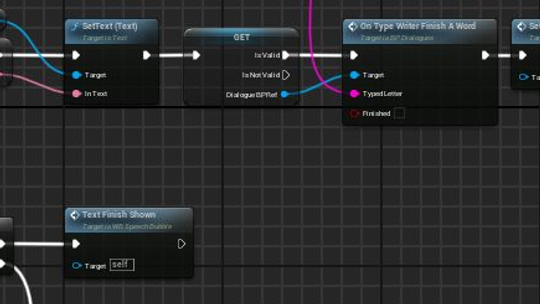
WB_SpeechBubble updates Text_Content, validates DialogueBPRef and sends typing feedback to BP_Dialogues. When the text finishes, the bubble broadcasts the actor-owned OnFinishedTypingText dispatcher.
The actor's listener coordinates delay and continuation. This keeps sequence progression in the actor while the widget reports what has happened in the presentation.

Widget-side excerpt: update the text, validate DialogueBPRef, and report typing feedback to the dialogue actor.
Keep situated messages readable
Ordinary bubbles use distance-driven opacity and scale. Important messages use screen-edge adjustment. The presentation responds to the speaker's position and the importance of the line.
Debug-menu input, focus and return to play
I built shared button handling for WBP_Debug_Menu, with each button scoped to the menu that owns it. The menu establishes input context when it opens and returns control to gameplay when it closes.
The debug tools include waypoint teleportation and a command to stop active dialogue sequences. Shared focus and action handling let these controls follow the same menu lifecycle.
Blueprint button collection scoped to the owning menu.
I built shared button handling for WBP_Debug_Menu, with each button scoped to the menu that owns it. The menu establishes input context when it opens and returns control to gameplay when it closes.
I built shared button handling for WBP_Debug_Menu, with each button scoped to the menu that owns it. The menu establishes input context when it opens and returns control to gameplay when it closes.
Controls screen: Return highlighted
The highlighted Return button makes the current selection visible in the player-facing Controls screen.
Debug menu: collect owned buttons
The owner check keeps only this menu’s widgets, then adds unique button references for shared focus updates. This graph is from the debug menu.
I built shared button handling for WBP_Debug_Menu, with each button scoped to the menu that owns it. The menu establishes input context when it opens and returns control to gameplay when it closes.
Collect buttons within the owning menu
The menu collects widgets, filters them by their owning menu and keeps unique button references for shared updates. The owner check defines which buttons belong in the set; unique references prevent the same widget from being added twice.

Open the panel and establish input context
Opening the debug menu switches input to Game and UI, selects the panel and remembers focus.
Store focus and route shared actions
The graph passes the Button Menu Noclip reference into Keyboard Focus, stores the same reference as Last Focus Button, and calls On Update Button with Is Focused set to true.

Mapped confirm, back and toggle actions route through the shared button handling.
Close the menu and end its update lifecycle
Closing restores Game Only input and clears the focus-update timer.
One Blueprint call for screen transitions
I built a reusable UMG transition widget with PlayTransition as its Blueprint entry point. Gameflow selects the animation and playback settings through that call.
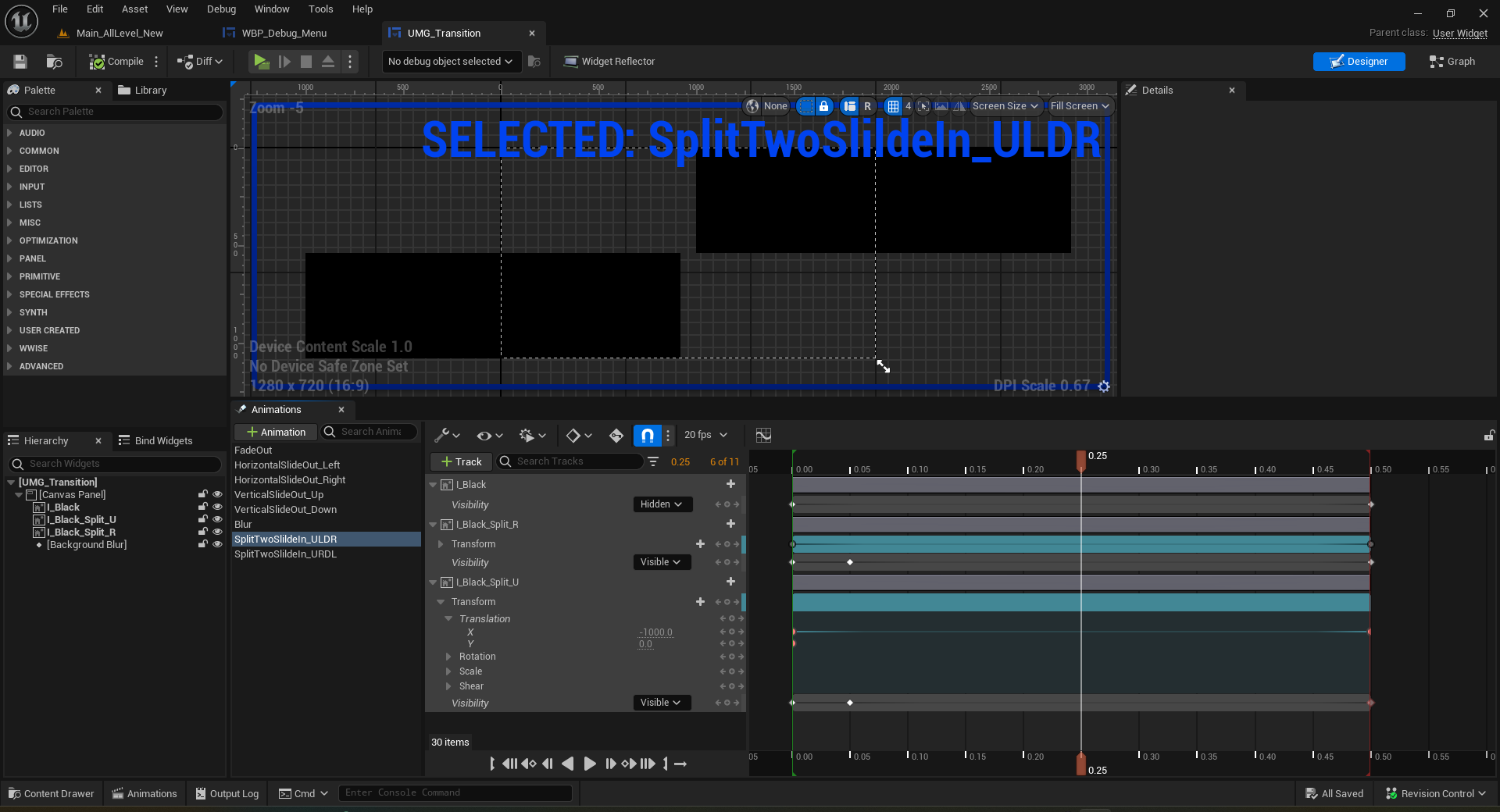
The widget contains fade, horizontal and vertical slide, two-panel and blur sequences. PlayTransition exposes animation selection, playback direction, speed and tint, with an option to start at the selected animation's end time.
The two-panel transition in the UMG editor at 0.25 s.
I built a reusable UMG transition widget with PlayTransition as its Blueprint entry point. Gameflow selects the animation and playback settings through that call.
I built a reusable UMG transition widget with PlayTransition as its Blueprint entry point. Gameflow selects the animation and playback settings through that call.
First view
Second view

I built a reusable UMG transition widget with PlayTransition as its Blueprint entry point. Gameflow selects the animation and playback settings through that call.
One entry point for different sequences
I exposed the animation and playback settings through PlayTransition so gameplay scripts could reuse the same widget.
Choose the playback behaviour
Animation selects the UMG sequence.
PlayMode controls playback direction.
PlaySpeed controls playback rate.
StopOtherAnimation optionally stops existing animations.
WhiteMode switches the image tint.
InstantMode starts playback at the selected animation's end time.
Connect the widget to gameflow
BP_TransitionManager creates the transition widget, adds it to the viewport and stores its reference on the HUD. The UI library selects animation assets through an enum.
Menu polish and input guidance
For release, I worked on menu navigation, Controls-panel cleanup, pause-menu readability and startup settings. I also worked on guidance that responds to the player's input device.
The problems were practical: pause text could disappear against bright scenes, selected settings needed to load at startup, and dialogue and tutorial prompts needed to follow the input in use.

Player-facing Controls overlay with the Return button highlighted.
For release, I worked on menu navigation, Controls-panel cleanup, pause-menu readability and startup settings. I also worked on guidance that responds to the player's input device.
For release, I worked on menu navigation, Controls-panel cleanup, pause-menu readability and startup settings. I also worked on guidance that responds to the player's input device.
First view
Second view
For release, I worked on menu navigation, Controls-panel cleanup, pause-menu readability and startup settings. I also worked on guidance that responds to the player's input device.
Make the pause menu readable over the game
In bright areas such as the white room, pause-menu text was hard to read. I added drop shadows and a lightly tinted background.
Correct navigation and panel cleanup
My release work included Back/B navigation and Controls-panel cleanup. The Controls screen shows the selected Return button within the player-facing overlay.
Interface artwork and shared button assets: CWO team. Menu behaviour and integration: Yang YI.
Load the selected settings at startup
My release integration included startup loading for volume and colourblind settings.
Respond to the player's input
I worked on moving guidance from connection-based device detection toward the player's actual input events. This included dialogue prompts and Tutorial Input Board decals that change with input. The board interaction also brings the camera closer as the player approaches.
A shared workflow across levels
The dialogue-and-Activates workflow became the shared pattern for scripted events across levels. Designers configured content and event targets through the same actor-and-table setup.
Adding a sequence meant choosing its dialogue table, speaker and event targets in BP_Dialogues. The same pattern supported visible dialogue and silent event rows, with the speech bubble returning typing feedback to the actor.
The dialogue-and-Activates workflow became the shared pattern for scripted events across levels. Designers configured content and event targets through the same actor-and-table setup.
The dialogue-and-Activates workflow became the shared pattern for scripted events across levels. Designers configured content and event targets through the same actor-and-table setup.
First view
Second view
The dialogue-and-Activates workflow became the shared pattern for scripted events across levels. Designers configured content and event targets through the same actor-and-table setup.